How To Set Up Automatic Reply In Outlook
A practical step-by-step guide to how to set up automatic reply in outlook, including preparation, instructions, common issues, tips, and next steps.
How To Set Up Automatic Reply In Outlook
This guide explains how to approach how to set up automatic reply in outlook, including the preparation, practical steps, common mistakes, and final checks that help you finish with confidence.
Before You Start
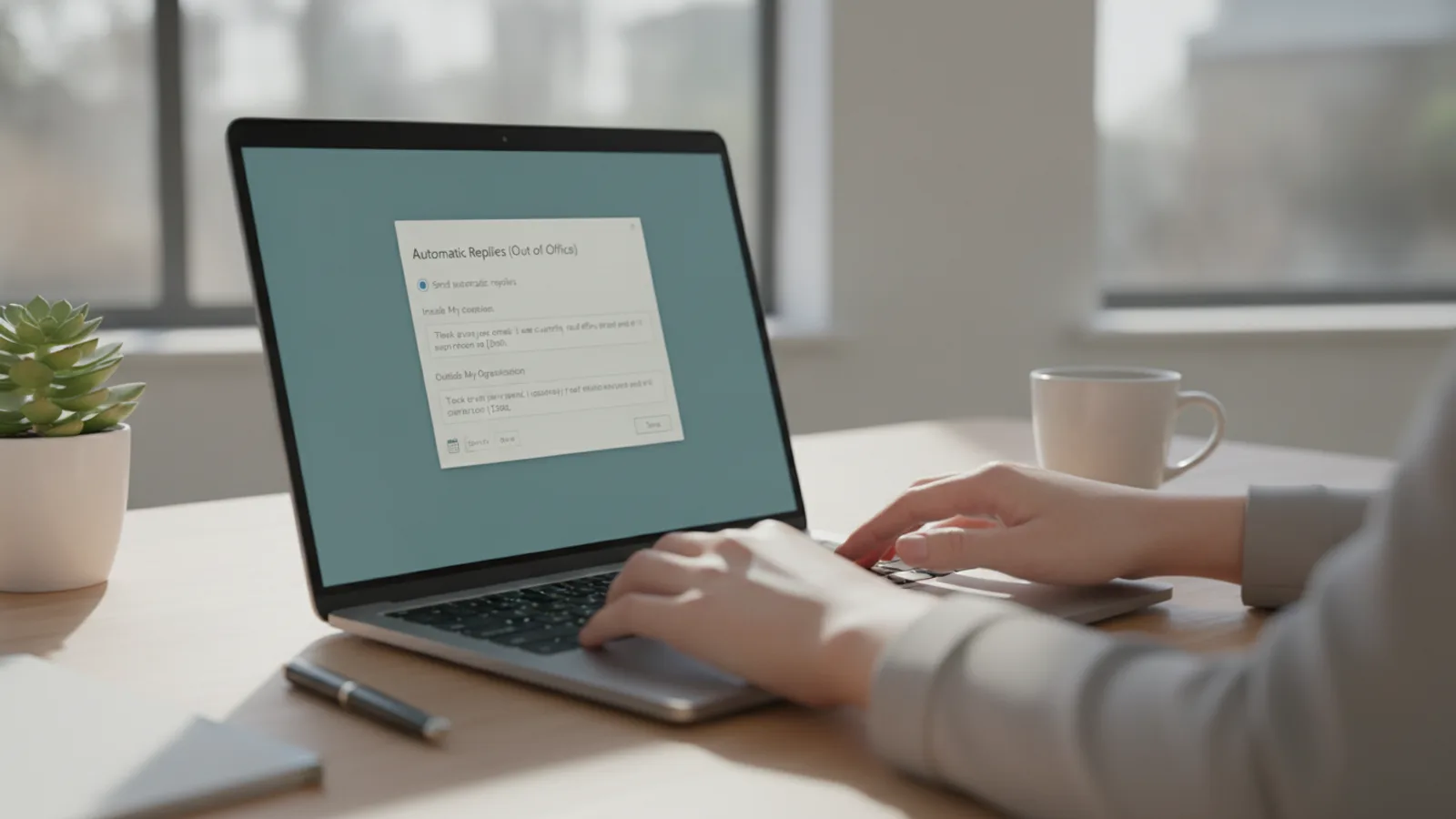
Step-by-Step Instructions
Quick Reference
Common Problems When You Set Up Automatic Reply In Outlook
Even with clear instructions, you might run into a few common issues when setting up your automatic reply in Outlook. Here’s how to troubleshoot them:
- Automatic Reply Not Sending to External Contacts:
- Forgetting to Turn Off the Automatic Reply:
- Message Content Issues (Too Vague or Unprofessional):
- Setting Up on the Wrong Outlook Version:
- Automatic Replies Option is Missing in Outlook Desktop:
Advanced Tips for Setting Up Automatic Reply In Outlook
Once you're comfortable with the basics of setting up automatic replies, consider these advanced tips to make your out-of-office experience even smoother and more effective:
- Include an Alternative Contact for Urgency:
- Update Your Calendar Status:
- Set Expectations on Response Time:
- Consider Using a Signature for Contact Info:
- Test with an External Email Account:
- Manage Your Inbox Before You Leave:
- Review Old Automatic Replies:
How To Set Up Automatic Reply In Outlook FAQ
What is an automatic reply in Outlook?
Can I set an automatic reply for specific people only?
Does the automatic reply send repeatedly to the same person?
How do I know if my automatic reply is working?
What if I forget to turn off my automatic reply?
Can I schedule automatic replies for future dates?
Final Checklist for How To Set Up Automatic Reply In Outlook
Before you step away from your inbox, use this checklist to ensure your automatic reply is perfectly set up and ready to go:
- Have you opened the correct Outlook version (desktop app or OWA) and navigated to the Automatic Replies settings?
- Is the option to 'Turn on automatic replies' (or equivalent) actively checked/toggled to 'On'?
- If you want replies to stop automatically, have you enabled and correctly set the start and end dates/times for your absence?
- Have you written a clear, polite, and professional message for senders inside your organisation?
- If applicable, have you included an alternative contact person and their details for urgent matters in your internal message (with their permission)?
- Is the option to send replies to 'Outside My Organisation' enabled?
- For external replies, have you selected whether to send to 'My contacts only' or 'Anyone outside my organisation' based on your needs?
- Is your message for external senders general, professional, and free of sensitive internal information?
- Have you proofread both messages for any typos or incorrect dates?
- Have you clicked 'OK' or 'Save' to apply all your changes?
- (Optional but recommended) Have you sent a test email from a different account to confirm the automatic reply is working correctly?
- Do you know how to manually turn off the automatic reply if your plans change or if you didn't set a time range?
By following this guide and checklist, you can confidently set up your automatic reply in Outlook, ensuring everyone who emails you during your absence is kept informed, and you can enjoy your time away knowing your inbox is being managed professionally.