How To Recall The Email In Outlook
A practical step-by-step guide to how to recall the email in outlook, including preparation, instructions, common issues, tips, and next steps.
How To Recall The Email In Outlook
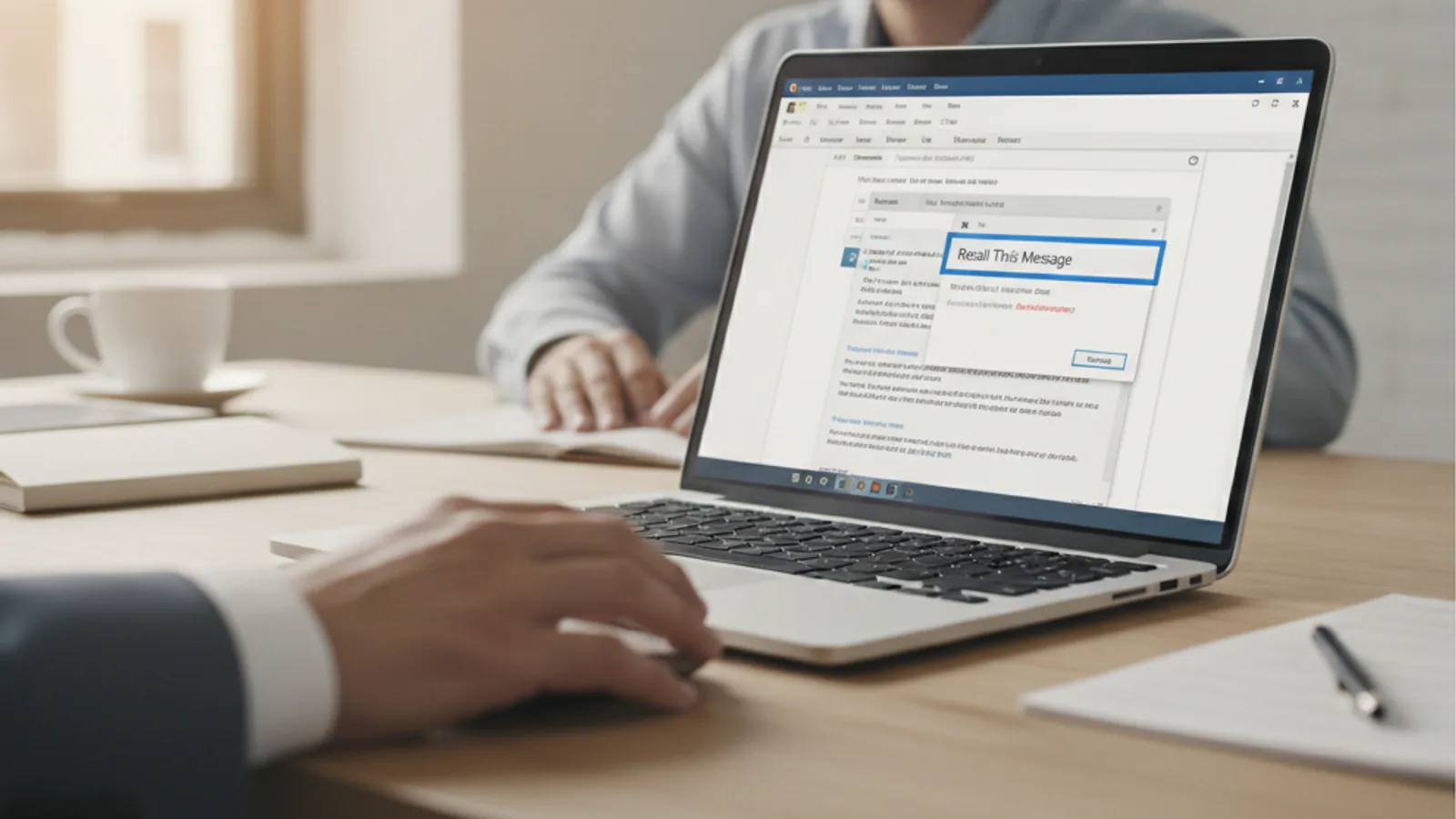
This guide explains how to approach how to recall the email in outlook, including the preparation, practical steps, common mistakes, and final checks that help you finish with confidence.
Before You Start
Step-by-Step Instructions
Quick Reference
Common Problems When You Recall an Email in Outlook
Even though the email recall feature is handy, it doesn't always work perfectly. Here are some common issues you might run into and what they mean:
Advanced Tips for Recalling Emails in Outlook
While the basic recall function is straightforward, there are some advanced tips and proactive measures you can take to manage your email communications more effectively and minimise the need for recalls.
How To Recall The Email In Outlook FAQ
Can I recall an email sent to someone outside my company?
No, typically you cannot. The Outlook recall feature relies on both the sender and recipient being on the same Microsoft Exchange or Microsoft 365 email system within the same organisation. It will not work for recipients using external email services like Gmail, Yahoo, or other non-Exchange systems.
How long do I have to recall an email?
There isn't a strict time limit, but the effectiveness of the recall depends entirely on whether the recipient has opened the email. The sooner you attempt the recall, the higher the chance of success. Once the recipient has read the email, the recall will fail to remove it from their inbox.
What happens if the recall fails?
If the recall fails, the original email remains in the recipient's inbox. If you chose to receive notifications, you will get an email informing you of the recall failure. In such cases, the best course of action is to send a follow-up email apologising for the mistake and providing the correct information or context.
Does the recall feature work on all versions of Outlook?
The recall feature is most reliable and often exclusively available in the **Microsoft Outlook desktop application** when connected to a Microsoft Exchange or Microsoft 365 account. It is generally not available or unreliable on Outlook on the web (Outlook.com) or mobile Outlook apps. If you are using a POP or IMAP email account, the recall feature will also not be available.
Will the recipient know I tried to recall an email?
Yes, usually. If the recall is successful (meaning the email is deleted or replaced), the recipient might receive a notification that a message was recalled by the sender, depending on their Outlook settings. If the recall fails, they will simply retain the original email, and they may also receive a recall failure notification, especially if they have already opened the email.
Final Checklist for How To Recall The Email In Outlook
Before you consider the task complete, run through this quick checklist to ensure you've covered all bases related to recalling an email:
By following these steps and understanding the limitations of the recall feature, you can effectively manage those "oops" email moments in Outlook and maintain clear communication.